
For HarmonyOS users, keeping WhatsApp updated ensures smooth communication. As WhatsApp periodically releases new features, compatibility on platforms like HarmonyOS becomes vital. This guide walks you through updating WhatsApp effortlessly, using tools like AppGallery and MicroG. Designed to simplify the process for HarmonyOS users, we’ll cover downloading WhatsApp, performing updates, and troubleshooting. Let’s dive into the steps and ensure your WhatsApp runs flawlessly on Huawei’s HarmonyOS.
Can HarmonyOS Run the Latest WhatsApp?
WhatsApp Compatibility with HarmonyOS
HarmonyOS is capable of running the latest version of WhatsApp, offering a similar experience to other mobile operating systems. HarmonyOS users can install and update WhatsApp through Huawei’s AppGallery. The AppGallery ensures you have access to the most recent version of WhatsApp compatible with HarmonyOS. This integration allows seamless communication and access to WhatsApp’s features, affirming that HarmonyOS supports standard WhatsApp functionalities just like Android.
Why MicroG Is Required for Updates
MicroG is essential for HarmonyOS users aiming to run apps that traditionally rely on Google services, including WhatsApp. MicroG acts as a substitute, bridging the gap. During the WhatsApp installation, HarmonyOS prompts you to install MicroG, ensuring that all features function correctly. This process guarantees that updates and notifications for WhatsApp are smoothly received, maintaining app performance and reliability.
Difference Between Android and HarmonyOS Setup
The primary difference between Android and HarmonyOS setups lies in their application ecosystems. Android relies on Google Play Services, while HarmonyOS uses AppGallery and MicroG. When setting up WhatsApp on HarmonyOS, users depend on AppGallery to download and update applications. Unlike Android devices, where Google Play automatically updates apps, HarmonyOS might require manual steps to ensure WhatsApp is up-to-date, offering a slightly distinct user experience.
How to Install WhatsApp for the First Time
Search and Download via AppGallery
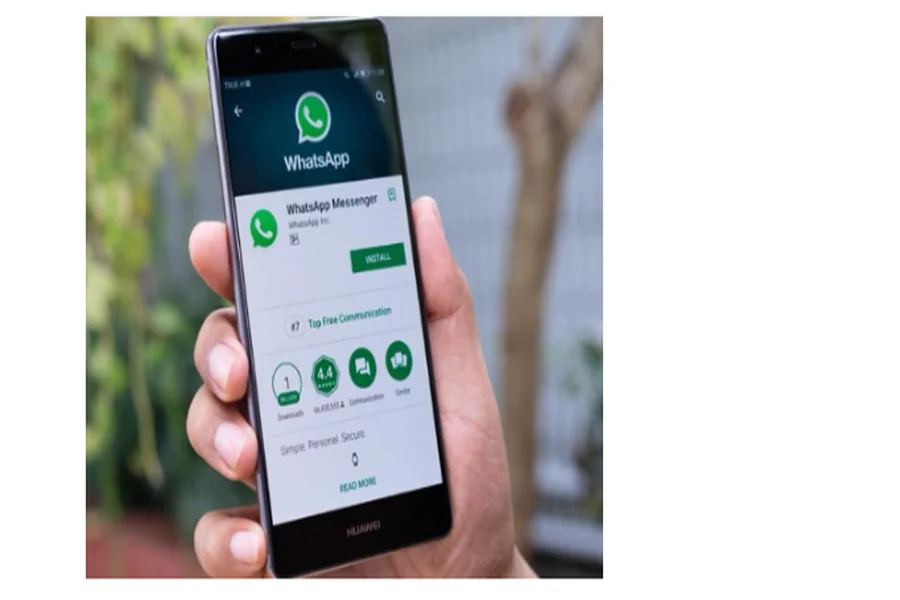
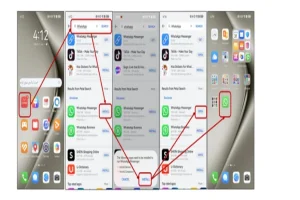
To install WhatsApp on your HarmonyOS device, open AppGallery and search for “WhatsApp”. Locate the official app and click the “INSTALL” button. AppGallery provides a protected environment for downloading apps, ensuring you access the correct and most secure version. By initiating the download from AppGallery, you ensure a direct and safe installation of WhatsApp on your HarmonyOS device, ready for use once installation completes.
Install MicroG When Prompted
Upon initiating WhatsApp installation, your device prompts you to install MicroG. This step is vital for the app’s functionality as it substitutes Google Play Services on HarmonyOS. Simply follow the on-screen instructions carefully to complete the MicroG installation. Ensuring MicroG is in place guarantees WhatsApp will operate without hitches, allowing all its features to execute smoothly on HarmonyOS without missing important messages, notifications, or critical updates.
Launch WhatsApp and Verify Your Account
After installation, open WhatsApp from your device’s home screen. You’ll be prompted to verify your phone number. Enter your number, and wait for the verification code via SMS. Input the code when prompted to complete the verification process. This step is crucial for activating WhatsApp on your device, allowing you to restore previous chats and contacts. Once verified, start using WhatsApp on your HarmonyOS without any interruption.
How to Update WhatsApp on HarmonyOS
Using AppGallery to Check for Updates
Keep WhatsApp updated by routinely checking AppGallery for the latest versions and enhancements. Open AppGallery, navigate to “Manager”, and tap on “Updates” to see if there’s a new version of WhatsApp available. If an update exists, click “UPDATE” to initiate the installation process. Regular checking avoids missing out on new features or security patches. This straightforward method ensures your WhatsApp remains current, secure, and reliable on Huawei devices running HarmonyOS.
Manual Update via Petal Search
If AppGallery doesn’t show an update, use Petal Search as an effective alternative method. Open Petal Search, search “WhatsApp latest version”, and select a credible source to download the APK file. After downloading, tap the APK to install the new version, ensuring you’re running the latest WhatsApp with all the latest improvements. Petal Search provides flexibility when AppGallery updates aren’t available, allowing HarmonyOS users to maintain secure and up-to-date apps.
What to Do If Update Fails
If an update fails, first clear the cache of your AppGallery and retry updating WhatsApp as recommended. Restart your device and attempt the process again for a fresh start. Ensure your internet connection is stable during this process for successful downloading. If issues persist, uninstall WhatsApp and reinstall it via AppGallery to obtain the newest version. This method resolves update problems effectively, maintaining uninterrupted access to WhatsApp on HarmonyOS devices.
Conclusion
HarmonyOS users can efficiently manage WhatsApp updates using this guide, ensuring seamless communication and app performance over time. By utilizing AppGallery and MicroG, you are optimizing functionality on HarmonyOS-powered devices for better stability and responsiveness. Maintaining regular checks for updates and being prepared to troubleshoot ensures your WhatsApp remains current and fully functional. Follow this reliable huawei whatsapp update approach to enjoy a consistently smooth and uninterrupted user experience across all communication scenarios.