

Best Video Repair Software for Damaged or Unplayable MP4/MOV Videos
A damaged video file can be frustrating because the clip may still be visible in a folder but impossible to play. MP4 and MOV files can fail after interrupted transfers, camera shutdowns, incomplete exports, or storage errors. Wondershare Repairit is an advanced AI-powered data repair tool for videos, photos, files, audio, and emails, and Repairit Online gives users a convenient browser-based option for quick video repair checks.
Why MP4 and MOV Videos Become Damaged
MP4 and MOV videos rely on structured containers that store video data, audio data, metadata, and playback information. If recording stops suddenly or the file is not written completely, the video may not open even though the file still exists. This is common with camera footage, phone videos, screen recordings, and edited exports.
The same problem can happen during transfer. A file copied from an SD card, external drive, cloud folder, or messaging app may become incomplete if the process is interrupted. The result can be a video that shows a black screen, freezes during playback, loses audio sync, or refuses to open in common media players.
What Good Video Repair Software Should Do
Good video repair software should focus on restoring usability rather than simply changing the file extension. A converter may help when a format is unsupported, but it usually cannot fix real file corruption. Video repair software should analyze the damaged MP4 or MOV structure, rebuild playable information where possible, and let users preview the repaired result before saving.
Preview is especially important for video files because opening the file is not enough. Users should check whether the repaired clip plays smoothly, whether audio remains aligned, and whether important frames are visible. A practical repair workflow reduces the risk of saving a file that still has serious playback issues.
How Repairit Supports MP4 and MOV Video Repair
video repair software from Repairit is designed for damaged or unplayable videos, including common MP4 and MOV problems. The workflow is simple: add the corrupted video, run repair, preview the clip, and save the repaired version. That makes it useful for creators, students, office users, and everyday video owners who do not want to troubleshoot codecs or file headers manually.
Repairit should still be used with realistic expectations. No tool can guarantee perfect recovery for every severely damaged video, especially if large sections of data are missing. But when the file exists and the issue is corruption, a dedicated video repair workflow is a sensible first step before giving up on the footage.
Online Video Repair vs. Desktop Video Repair
For urgent browser-based checks, Repairit Online video repair can help users try a quick repair path. Desktop video repair is better for larger files, repeated repair tasks, and important footage. The table below shows how to choose.
| Repair option | Best for | Video workflow fit |
| Online video repair | Quick checks, smaller MP4/MOV files, browser-first fixes | Useful when a user wants to test whether an unplayable clip can be repaired quickly |
| Desktop video repair | Large files, repeated repairs, important camera footage, batch workflows | Better for serious video repair tasks and larger damaged clips |
Step-by-Step: Repair a Damaged MP4 or MOV Video
The steps below follow the official Repairit video repair workflow and keep the process to four main actions.
Step 1: Add the Corrupted Video
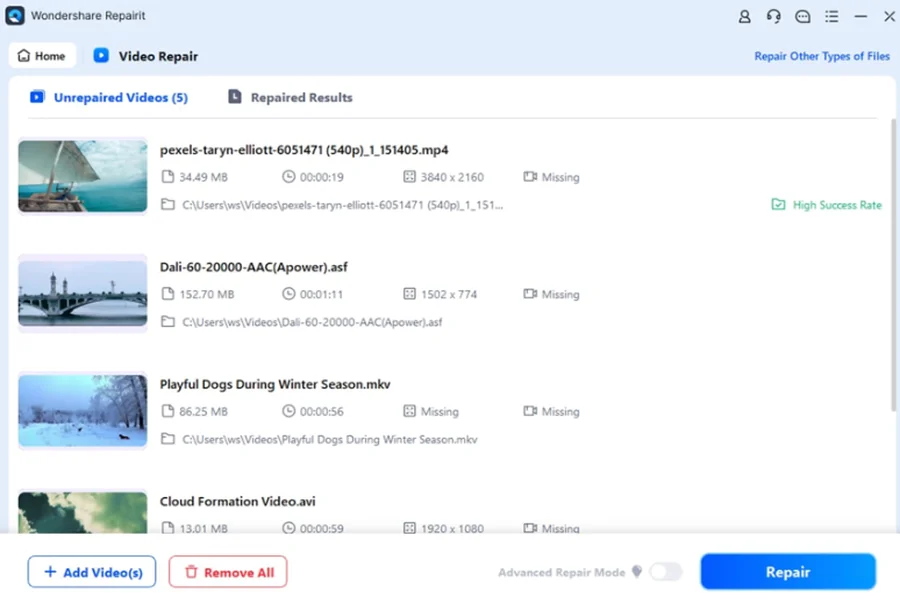
Open Repairit, choose the video repair function, and add the damaged MP4 or MOV file. Keep the original file unchanged and work from a copy when possible.
Step 2: Start the Video Repair Process
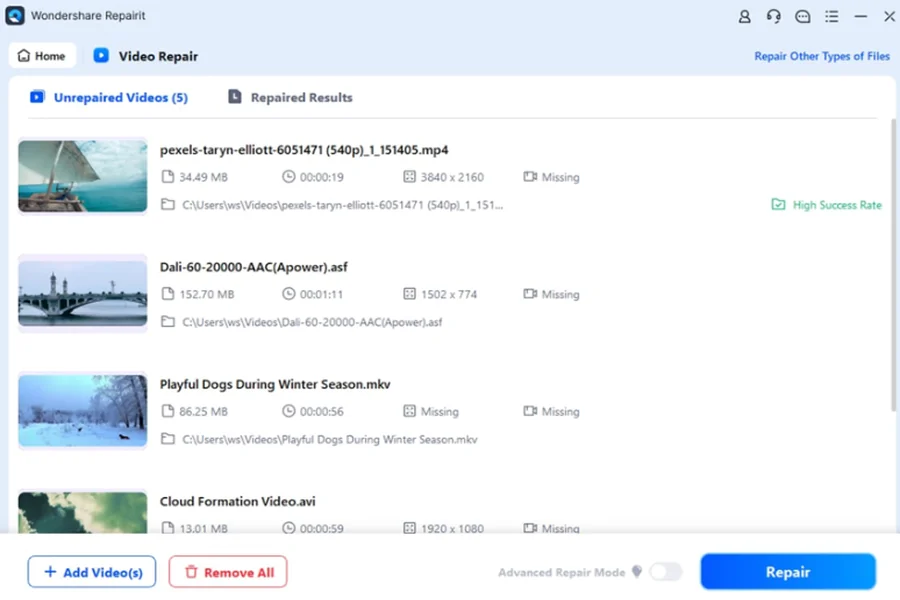
Start the repair process so Repairit can analyze the damaged video structure and attempt to rebuild a playable version of the clip.
Step 3: Preview the Repaired Video
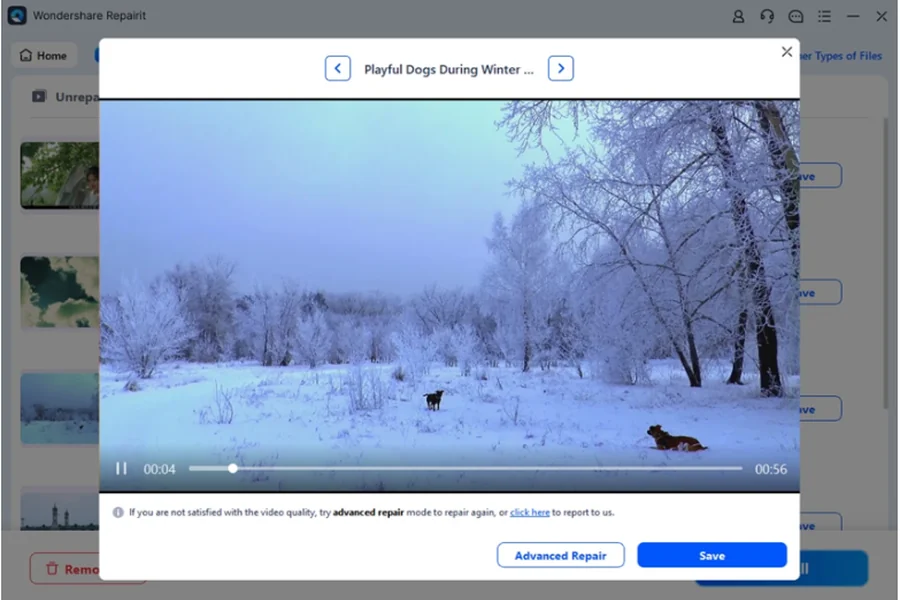
Preview the repaired video before saving. Check playback, visible frames, audio sync, and whether the important section of the video is usable.
Step 4: Save the Fixed Video File
If the preview looks right, save the repaired video to a safe folder. For valuable footage, keep the original damaged file and the repaired copy in separate locations.
When to Use Video Repair Software Instead of a Converter
A converter is useful when a video format is unsupported, but it is not the right tool for a corrupted MP4 or damaged MOV file. If the video cannot open, shows a black screen, freezes, or plays with broken audio, video repair software is more appropriate because the problem is likely inside the file structure.
Users should also avoid repeatedly uploading a damaged video to random tools or renaming the extension without understanding the issue. A cleaner approach is to copy the original, try repair, preview the result, and then decide whether additional editing or conversion is needed.
How to Prevent Future MP4 and MOV Corruption
Prevention still matters. Let cameras finish saving before powering off, avoid removing SD cards during recording, use reliable storage devices, and make backups before editing. For creators and business users, it is smart to keep raw footage, edited exports, and repaired files in separate folders.
If a clip is important, check playback before deleting the source from a camera, phone, or drive. This quick habit can prevent a small transfer issue from becoming a major recovery problem later.
Before publishing or sharing a repaired MP4 or MOV file, users should play the entire clip once, not just the opening seconds. Some damaged videos appear fixed at the start but still freeze later in the timeline. Checking the full video helps confirm that the repaired file is ready for editing, uploading, or archiving.
Final Thoughts
The best video repair software should make damaged MP4 and MOV repair clear, practical, and easy to verify. Repairit fits that need by offering AI-powered video repair, preview before saving, desktop repair for larger tasks, and online video repair for quick checks. For users dealing with unplayable videos, it offers a useful repair workflow before reshooting or abandoning the footage.