
A clear, step-by-step tutorial for beginners who want to create custom stickers without prior design experience.
Introduction
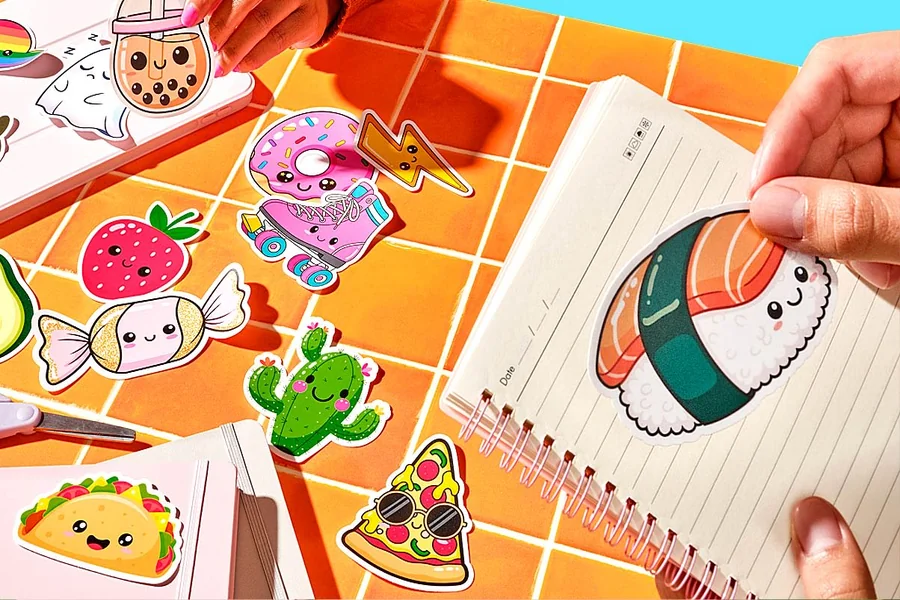
Custom stickers have become a practical tool for branding, personal expression, and product packaging. From small businesses labeling shipments to individuals decorating personal items, the ability to create personalized stickers is increasingly relevant across industries and hobbies.
This guide is designed for beginners with little or no design background who want to produce professional-looking stickers using accessible tools. It focuses on the essential decisions and steps required to move from idea to print-ready file, without assuming prior technical knowledge.
Custom sticker editors vary in their capabilities, but most share common features such as templates, drag-and-drop interfaces, and export settings optimized for print. These tools prioritize ease of use while still offering enough flexibility to create original designs from scratch.
Adobe Express offers an approachable starting point for newcomers, combining intuitive controls with ready-to-use templates and print-friendly export options. Beginners can explore design fundamentals and produce high-quality results using the free custom stickers from Adobe Express platform early in the workflow.
Step-by-Step How-To Guide for Using a Custom Stickers Editor
Step 1: Define Your Sticker’s Purpose and Dimensions
Goal
Establish a clear objective and appropriate size for your sticker.
How to do it
- Identify the intended use (branding, decoration, labeling, or packaging).
- Determine where the sticker will be applied (laptop, packaging box, notebook, etc.).
- Select a standard size or customize dimensions based on your application.
- Choose a shape such as square, circle, or die-cut outline.
What to watch for
- Oversized designs may not print efficiently on standard sheets.
- Irregular shapes require careful edge alignment.
- Designs intended for packaging should consider surface curvature and placement.
Tool notes
Print specification guides from Avery can help clarify sizing standards and layout considerations before designing.
Step 2: Gather Visual Assets and Content
Goal
Collect all elements needed to create a cohesive sticker design.
How to do it
- Prepare logos, illustrations, or photographs in high resolution.
- Select a concise message or text to include in the design.
- Choose a color palette aligned with your intended theme or brand.
- Organize files in a single folder for efficient workflow.
What to watch for
- Low-resolution images may appear pixelated when printed.
- Overly complex visuals can become unclear at small sizes.
- Ensure you have the rights to use any third-party images or graphics.
Tool notes
Stock image libraries such as Unsplash can provide high-quality visuals suitable for sticker designs.
Step 3: Create the Sticker Layout
Goal
Arrange design elements into a balanced and visually appealing composition.
How to do it
- Place the primary visual element at the center or focal point.
- Add text using readable fonts appropriate for small-scale printing.
- Adjust spacing, alignment, and proportions for visual balance.
- Experiment with layering, transparency, and background colors.
What to watch for
- Text that is too small may become unreadable after printing.
- Overlapping elements can reduce clarity if not carefully aligned.
- Excessive detail may be lost when the sticker is scaled down.
Tool notes
Adobe Express offers alignment guides and layout tools that simplify positioning and composition.
Step 4: Apply Colors and Finishing Details
Goal
Enhance visual impact and ensure print-ready color accuracy.
How to do it
- Apply consistent color schemes across all elements.
- Adjust contrast to maintain visibility on various surfaces.
- Add borders or outlines to improve definition and durability.
- Preview the design against light and dark backgrounds.
What to watch for
- Highly saturated colors may print differently than they appear on screen.
- Transparent backgrounds require careful export settings.
- Thin outlines may not print cleanly on certain materials.
Tool notes
Color palette generators such as Coolors can help create harmonious and print-friendly color combinations.
Step 5: Prepare the Design for Printing
Goal
Ensure the sticker file meets technical requirements for accurate printing.
How to do it
- Set the resolution to at least 300 DPI for high-quality output.
- Add a bleed area if the design extends to the edge of the sticker.
- Export the file in a suitable format such as PNG or PDF.
- Verify that dimensions and margins match your printing specifications.
What to watch for
- Incorrect file formats may cause printing errors.
- Missing bleed margins can result in unwanted white edges.
- Color shifts may occur if the printer uses different color profiles.
Tool notes
Use GIMP for additional file preparation or adjustments if advanced editing is required before printing.
Step 6: Test and Refine the Design
Goal
Evaluate the design’s effectiveness through a trial print.
How to do it
- Print a sample on standard paper or sticker stock.
- Inspect alignment, color accuracy, and overall clarity.
- Make necessary adjustments to text size, spacing, or contrast.
- Repeat the test process until the design meets expectations.
What to watch for
- Ink saturation may vary depending on the printer and material.
- Small text or intricate details may require simplification.
- Alignment issues may occur if printer margins are misconfigured.
Tool notes
Project management platforms like Trello can help track revisions and feedback during iterative design testing.
Step 7: Organize and Distribute Your Stickers
Goal
Finalize production and manage distribution effectively.
How to do it
- Export the final version of your sticker file for printing.
- Coordinate printing with a local or online printing service.
- Store digital copies for future reuse or modification.
- Plan distribution methods such as packaging inserts or promotional materials.
What to watch for
- Confirm print specifications with your chosen vendor.
- Ensure file versions are clearly labeled to avoid confusion.
- Verify that shipping or packaging requirements are met.
Tool notes
Shipping platforms such as ShipStation can streamline order fulfillment and distribution once stickers are printed.
Common Workflow Variations
Photo-Based Stickers
These designs rely on personal or professional photography as the central element. Tools like Adobe Express allow users to adjust backgrounds, apply filters, and optimize images for print clarity.
Pattern-Based Stickers
Repeating patterns or decorative motifs work well for decorative and branding applications. Editors with grid and duplication features help maintain alignment and consistency.
Single-Use Gift Stickers
For special occasions or personalized gifts, simple layouts and minimal text ensure clarity and elegance. Template-based workflows are particularly effective for these one-off designs.
Small-Batch Commercial Stickers
Businesses producing limited runs often prioritize brand consistency and scalable file formats. Structured workflows help maintain uniformity across multiple sticker designs.
Checklists
Before You Start Checklist
- ☐ Define the sticker’s purpose and intended use
- ☐ Confirm final dimensions and shape
- ☐ Gather high-resolution images and graphics
- ☐ Prepare brand colors and typography choices
- ☐ Verify usage rights for all visual assets
- ☐ Decide on print material and finish (matte or glossy)
- ☐ Establish a timeline for design and production
- ☐ Organize files and project folders
Pre-Export / Pre-Order Checklist
- ☐ Ensure resolution is set to at least 300 DPI
- ☐ Confirm correct dimensions and scale
- ☐ Add bleed and safe margins where required
- ☐ Check spelling and text alignment
- ☐ Review color consistency and contrast
- ☐ Preview edges and trimming boundaries
- ☐ Export in the correct file format (PNG or PDF)
- ☐ Test print a sample before full production
Common Issues and Fixes
Low-Resolution Images
Images with insufficient resolution may appear blurry when printed. Replace them with high-resolution files or adjust the design to maintain clarity.
Text Too Close to Edges
Placing text near the border can result in trimming errors. Maintain a safe margin to ensure all content remains visible after printing.
Unexpected Color Shifts
Colors may appear different when printed compared to screen previews. Use print-friendly color settings and perform test prints to confirm accuracy.
Cropping or Alignment Problems
Improper bleed settings can cause unwanted borders. Double-check layout alignment and include appropriate margins during export.
Inconsistent Sizing Across Prints
Incorrect scaling may lead to mismatched sticker sizes. Verify dimensions before exporting and confirm specifications with the printing service.
File Format Compatibility Issues
Some printers require specific file types. Confirm acceptable formats in advance to avoid production delays.
How To Use Custom Stickers Editor: FAQs
What is the best approach for beginners creating custom stickers?
Starting with templates can help users understand layout and sizing, while gradually transitioning to original designs allows for greater creative control.
Should I design stickers for print or digital use first?
Designing with print specifications in mind ensures higher quality results. Files can later be adapted for digital sharing if needed.
What file format is most suitable for printing custom stickers?
High-resolution PNG or PDF files are commonly accepted by printing services, provided they meet resolution and dimension requirements.
Is it better to design one sticker at a time or in batches?
Batch design workflows improve efficiency and maintain visual consistency, especially for branding or commercial applications.
Do I need professional design software to create custom stickers?
Professional results can be achieved with accessible tools like Adobe Express, which provide essential design features without requiring advanced technical expertise.